
Fix for wallet, play store, banks and gov. apps for anyone update 18.10.2026


2 Oct 2019
621
82
Read Everything​
Code:
Google Definition of rooting if any of this is true
1. Unlocked bootloader
2. Custom Rom like Xiaomi.Eu
3. Custom wallpaper
4. Any setting modification without their bleesing
5. Uncertfied App

This Mean: If you unlock bootloader to install custom rom,
you device is rooted!!
Google will said:
You device dont satisfy security requrements!!
Code:
This tutorial is not mandatory.
Mandatory is using english language!!
This tutorial evolving based on new solution.
Only importmant is working bank, gov, wallet app.
Dont send me private mail!
If you have better solution, publish it.
Do not troll this post
Code:
English lang is mandatory!!
I understand English
My mother language is Croatian
In Croatia we have dialect which most of people
from Croatia dont understand
because its not croatian official!!

So, Only english post

Only pic with english lang
or translate what it writes in pic

Return info succesed or not
In case of success, press like

Do not install any extra modules before testing
After succesfull, install what ever module you want,
but in case of detection, first remove all extra module

Removing is not same as disabling!!

First follow recomended
without extra modules

because Im not here to fix you sadistic wishes

Send info:
version Root Manager
Installed modules
type filename version AnyKernel
and for which manager

Is it moved from LKM to GKI root and fixed
Needed​

Update phone with latest xiaomi.eu or othe firmware with original boot image for your phone. Finish Setup, etc. Change from original to Xiaomi.Eu or any custom firmware with original boot image or reverese direction, clean install is RECOMENDED.
For reinstall make normal upgrade, clean mode (format) only if you have installed problematic module!!

Rooting LKM or GKI
LKM Root: Root Manager, Zygisk Client, Integrity Fixer, Tee Simulator, Metamodule (,SuSFS manager because KSUN 3.42 support LKM SuSFS )
GKI Root: Root Manager, Zygisk Client, Integrity Fixer, Tee Simulator, AnyKernel3, SuSFS Manager, Metamodule


Rooting
Requirements Original boot image, not working with AOSP and similiar
​
Code:
This method is default for all Kernel Manager.
You create pathced init_boot.img and flash it through fastboot or TWRP
No special knowledge needed
Pro
Its easyest method

Cons
Not so excelent in root hidding and Google Wallet easy see root
Not Recomended if you have plan to use Google Wallet
or any app with better root detection
it support SUSFS in KSUN v3.42 but I didnt test it
Install root Manager, Zygisk client, Integrity Fixer, TeeSimulator
Code:
Pro
Better hiding then LKM in hidding

Cons
5.10 kernel or higher
Android 12 or higher
Anykernel3 support only KSU, KSUN and ReSukiSU


Easyway
Code:
from Recovery (TWRP or any custom recovery
Select Last Version AnyKernel3.Zip what you download
Warning:
You can end in bootloop if Anykernel3
is not compatible with your device


Safe way


Code:
Look what version you have on mobile or
Look on KSUN which kernel you have.
Anykernel version must be same as phone.
Example: Android 14 6.1.138 KSU Next

Download latest version of Anykernel3.zip
for your phone and root manager

Create patched_boot.img
Its not patched_init_boot.img!!
Do not flash patched_boot.img.
To boot, go to fastboot on device and from PC, type this command[/CENTER]
fastboot boot patched_boot.img ( or new_boot.img if you didnt rename)
Device will reboot.
On succesfully boot, continue, if not, make new patched_boot


Code:
Download AnyKernel3 from Wild Kernels
for your rooting manager and last for you phone
Start root manager, windows with arrow:
In my case its 6.1.138 Android 14.

Top Selection, select downloaded zip file and finish it.

KSUN main.jpg

Select "Flash AnyKernel(.zip)"
KSUN Flash.jpg


Install root Manager, Zygisk client, Integrity Fixer, TeeSimulator and SUSFS manager

Patch boot image
Required Download:
Magiskboot for Windows or Magiskboot for linux​

Download Anykernel.zip for your mobile and your root manager
make folder to work
extract anykernel.zip into work folder without root folder in archive
or
copy your boot.img to work folder or into root folder of Anykernel extracted
command from terminal
magiskboot unpack boot.img
Windows
del kernel
ren image kernel

or in linux
mv Image kernel

same for windos and linux
magiskboot repack boot.img
new_boot.img is patched_boot.img
if you want, rename
ren new_boot.img patched_boot.img
This will patch boot.img on the phone

Code:
go to fastboot
fastboot flash boot_ab images\boot.img
fastboot reboot recovery
in TWRP install latest version Anykernel
or
go to fastboot
fastboot flash boot_ab images\boot.img
fastboot boot patched_boot.img
fastboot reboot
start kernel manager
Install Anykernel from root manager
reboot

or
root LKM method

Code:
go to fastboot
fastboot flash init_boot_ab patched_init_boot.img
fastboot reboot
start kernel manager
Flash from kernel manager Anykernel
go to fastboot
fastboot flash init_boot_ab images\init_boot.img
fastboot reboot

TWRP​
go to fastboot
from pc type command


Code:
fastboot flash recovery_ab twrp_something.img
or
fastboot flash recovery twrp_something.img (old devices)
Finish with
fastboot reboot
Check is it installed
fastboot reboot recovery
Usefull before flashing
Go to Images folder

Code:
rename recovery.img to recovery2.img
copy "twrp_something.img" into images folder
rename "twrp_something.img*" recovery.img

Reinstall clean or upgrade Xiaomi.Eu Firmware.

My recomandation
Not Mandatory, Works only with Original Boot.img

Code:
Follow procedure from section Rooting
Spoiler:GKI Root

Install modules in following order

1. KernelSu Next v3.40, latest version need unpublished Anykernel

2. Nomount, reboot

3. ZygiskNext, reboot

4. Specter+PlayIntegrityFork (or Integrity Box v44)

5. Tee Simulator Rs

6. Tricky AddOn Enchanced

7. ReSuSFS

8. Reboot

9. Start Root manager, start  TeeSimulator-RS, (auto selection, no manual selection),
action or just start "Specter".
Press wrench icon, select pif Pixel 6a, download keybox from Kow, exit  specter, press Specter Action icon

Same as TeeSimulator, auto config

10. Exit Root Manager and Test is it working bank, wallet, play store device is certified

Do not test play integrity, you will loose everything or google will ban your account

Start from here, its mandatory to work
except Other safe Modules

Download modules​
Supported managers are KSU, KSU Next, ReSUKISU

Download exactly for your mobile phone and root manager you decide to use

WildJames Anykernel3


Alnassif GKID Kernel
Select only one, download last version
Magisk


KernelSu-Next

SukiSu-Ultra

KernelSu


ReSuki-Su
Select only one, download last version
Integrity Box

PlayIntegrityFork+Specter
Select only one,
download last version

SuSFSKSU

Brene SuSFS


ReSuSFS
Select only one, download last version
TeeSimulator-RS

TeeSimulator

TrickyStore

AddOn
Select only one, download last version

TrickyStore AddOn

Enchanted Tricky AddOn
Select only one,
download last version

NoMount

MagicMount-Rs

Change Root Manager​
uninstall old root manager
install new root manager
start new root manager
make patched_init_boot or vendor_boot
goto fastboot
fastboot flash init_boot_ab original_init_boot
fastboot_flash vendor_boot_ab original_vendor_boot
fastboot flash init_boot_ab patched_init_boot
or
fastboot flash vendor_boot_ab patched_vendor_boot
fastboot reboot
Supported root manager for Anykernel are KSU, KSU Next and ReSukiSU
Its very simple
Download and install new root manager
uninstall old root manager
Download Anykernel3 for your manager and your phone
(1 file with 2 condition)
goto fastboot
fastboot flash boot images\boot.img
fastboot rebot recovery
In twrp flash anykernel3.zip for your mobile phone
or
create new pathed_boot
goto fastboot
fastboot boot patched_boot.img
goto root manager
install anykernel.zip

Troubleshooting​
Code:
Use only one root method, LKM or GKI
If you mix LKM root and GKI root, probably google wallet will not work
because it detect root on different stages (block add card, block payment)

Do not use Brene SUSFS 0.0.66!!

Brene SUSFS v0.0.67 and new fixed bug

KSUN after v3.40 ask new anykernel, so avoid new version

Integrity Box v43 is problematic

Its highly recomended!!
format dalvik_cache partition through recovery
or empty folder /data/dalvik-cache with root browser
Battery can be drain faster with andoroid system apps if you dont delete dalvik_cache

Do not test Play Integrity!
Code:
After you install anykernel3 in root manager and reboot,
you must reflash init_boot or vendor_boot!
If you dont do it,
probably you will easy detected by Google
here is commands(flash boot if you dont know):

fastboot flash init_boot_ab images/init_boot.img
fastboot flash vendor_boot_ab images/vendor_boot.img
fastboot reboot
Problem: Root Detection
Problem with most user is combining LKM and GKI root
or in mixing tutorials
(In croatian lang we said

"Puno babica, kilavo djete"
or translated
"A lot of midwives, a curvy child")
Its DejaVu for me and I dont support this cases

Code:
Remove and uninstall all extra modules
which I not in my recomendation

I dont care what you see and why you follow other tutorial
Do not mix other tutorial with this
This is only for this tutorial

If combined LKM and GKI root, remove one,
But if you remove GKI,
then its only your problem which you
solve standalone and stop trolling this post

In specter select Pif Pixel 6a
Download Keybox from Kow
Keybox ver is 11 or up
exit Specter
Press Action Icon on Specter
Or
If you install Integrity Box v44, Action, Repair
Code:
Open Specter
Look for Kill Play Store
Manualy Clear Play Store Data
Exit Specter
Press Action Icon of Specter
Or
If you install Integrity Box v44, second Icon, Repair

Complaicated Way
you can also type command in terminal
adb shell "su -c 'am force-stop com.android.vending; pm clear com.android.vending'"
adb reboot
Last version Revolut is working without problems,
changing pin also work
Last version work without problems

Extra and Info​
Code:
AD-Blocker without Module
You can setup in "Private DNS"
1. ADGUARD-DNS:dns.adguard.com
2. NextDNS (more powerfull and more complicated to setup) I use it

3. Etc, you have it lot, you must found what is ideal for you
 

Attachments

  • Revolut.jpg
    Revolut.jpg
    13 KB · Views: 287
  • Revolut1.jpg
    Revolut1.jpg
    18.4 KB · Views: 279
  • Wallet.jpg
    Wallet.jpg
    20.5 KB · Views: 267
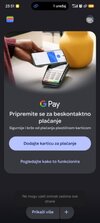
  • Gpay0.jpg
    Gpay0.jpg
    12.8 KB · Views: 271
Last edited:
Final Solution
Everything Works, All banks including Revolut works
Pass all levels including Strong integrity

Needed:
1. Last Version of Eu.Xiaomi.module.inject (last 07.21.2025), must be enabled (download from xiaomi.eu)
2. APatch (google it)
3. Tricky Store (last 1.30) (google tricky store)
4. Tricky Store Addon (Last 4.1) (google tricky store addon)
5. ReZygisk (Last 1.0.0.RC2) (google rezygisk)

Importmant
Do not Install Any Version or revision Play Integrity Fix, Fork, etc
Only What is needed


Reboot after everything installed

Setup
0. Uninstall Magisk all magisk mogules then unistall magisk
1.Install APatch (its based on Magisk), create img file (icon window with down arrow), copy that file to pc,copy boot.img to mob
2 Update Apatch (window with down arrow,
PC command without "" (only type bolded)
"fastboot boot apatch(something).img" (every time apatch create file with different name)

Start Apatch, windows with arror, Direct install and apply
3. In Apatch install ReZygisk, Tricky Store and Tricky Store AddOn
4. Reboot
5. Open Apatch, Then in app Tricky Store,
Add System app
com.google.android.gms
com..google.android.gsf
com.android.vending

select App for banks (Captive Portal login (mandatory), Google Wallet (mandatory), google play(mandatory) , google play services (mandatory), Revolut mHPB, mzaba, (mandatory all banks what you useand some app like xiaomi home) etc)
Select Valid Keybox,
"Save" (blue text),
Select Security Patch, (get from menu),
Save,
"Save" (blue text)
6. Clear all Data for Google Play Service, Wallet, Google play store, Google Service Framework (procedure for get google play certified)
7. Reboot

That all, you got 3 level

PS
If Valid Keybox is rewoked, everything works, do not do anything

In case of problem, uninstall updates for Google play store, Google play services. In Google setup block automatic update of system files.
Then clear all data for Google play services, Wallet, Google play store, Google service framework (exact follow order)
Somentimes helps to add in tricky store some app of google and xiaomi account

Here is proof that everything works. Google Wallet, HPB (cro bank), Revolut, Google play store certified, Strong Integrity
Dont make complication, follow simple tutorial

Disabled on my 12tpro
-----------------------------
(probably have hiden code that check root)

Tags
Gboard
Parental control
Android Auto
Google Assistant
Google Assistant
Google History locations
Google
Mail
android.qvaoverlay.common
Feedback
backup
--------------------
(I dont use it, its bloatware)
Connect to windows
Screen recorder
xiaomi share
xiaomi mover
xiaomi cloud
mipay service
mihealth
Soter service
mi drive
ai titles
mi coin
About
2 Update Apatch (window with down arrow,
PC command without "" (only type bolded)
"fastboot boot apatch(something).img" (every time apatch create file with different name)
Could it be made through TWRP instead through bootloader?
 
You will not be able to add a card in the Google Wallet with this procedure. To do so, you will need to disable the inject.apk and then flash the PIF from Osm0sis. In the provided json, you need to set SpoofProvider=0 otherwise you will not be able to set a card in the Wallet. The rest of mentioned modules are of course necessary. It will also work with any other Root Manager besides to Apatch.
 

Attachments

  • Screenshot_2025-08-05-13-35-41-588_org.telegram.messenger-edit.jpg
    Screenshot_2025-08-05-13-35-41-588_org.telegram.messenger-edit.jpg
    119.9 KB · Views: 1,311
About
2 Update Apatch (window with down arrow,
PC command without "" (only type bolded)
"fastboot boot apatch(something).img" (every time apatch create file with different name)
Could it be made through TWRP instead through bootloader?
Yes you can make a copy of the boot.img via TWRP which is stored on the device, you can then select this from Apatch. That is what I did, didn't need to connect to PC.

This tutorial worked too for Revolut on an old Xiaomi device of mine thanks
 
You will not be able to add a card in the Google Wallet with this procedure. To do so, you will need to disable the inject.apk and then flash the PIF from Osm0sis. In the provided json, you need to set SpoofProvider=0 otherwise you will not be able to set a card in the Wallet. The rest of mentioned modules are of course necessary. It will also work with any other Root Manager besides to Apatch.
I add succesfully with enabled xiaomi.inject.apk. And it works.
 
Last edited:
  • Like
Reactions: Ahaba
You will not be able to add a card in the Google Wallet with this procedure. To do so, you will need to disable the inject.apk and then flash the PIF from Osm0sis. In the provided json, you need to set SpoofProvider=0 otherwise you will not be able to set a card in the Wallet. The rest of mentioned modules are of course necessary. It will also work with any other Root Manager besides to Apatch.
Today i get strong interity on samsung sm-t976b without play integrity fix or fork or similiar. Only used Tricky store, Tricky StoreAddOn and rezygisk.
 
Today i get strong interity on samsung sm-t976b without play integrity fix or fork or similiar. Only used Tricky store, Tricky StoreAddOn and rezygisk.
The question is not wether you got Strong Integrity. The thing is that this setup will not always lead to a working Google Wallet. It differs from device to device.
 
Its boot image. probably
On Xiaomi 14 Pro, I made a full clean installation, and followed the instructions. I get on Key Attestation Google hardware attestation root certificate, and bootloader is locked.
But with Play integrity checker, I meet only Basic Integrity, no device integrity and no strong integrity.
I checked on Play Store and the device is not certified. On my Xiaomi 13, I register the GSF ID online to be certified, but on Xiaomi 14 pro cannot find GSF ID, not with adb command and not with Device ID Evozi.
Of course, as the device is not certified, I cannot use Revolut, curve pay or other sensitive/banking apps.
What could I do?
 
and google wallet works
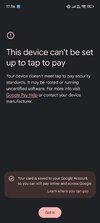
Nope, it doesn't meet the tap to pay security standards.
Maybe it has something that this specific device was only for Chinese market, and never got GSF ID because it was never released with global version? I suppose
 
Nope, it doesn't meet the tap to pay security standards.
Maybe it has something that this specific device was only for Chinese market, and never got GSF ID because it was never released with global version? I suppose
Nope, adjust the pif.json from the PIF Module accordingly. There are plenty of hints on XDA.
 
Nope, adjust the pif.json from the PIF Module accordingly. There are plenty of hints on XDA.
This is the problem, there are plenty of hints on XDA, what to choose, I uninstalled eu.Xiaomi.module.inject, I installed Play Integrity Fork v14, generated new PIF, and it passed all three integrity? But now Only Revolut works, no other bank/sensitive apps.
 
Last edited:
This is the problem, there are plenty of hints on XDA, what to choose, I uninstalled eu.Xiaomi.module.inject, I installed Play Integrity Fork v14, generated new PIF, and it passed all three integrity? But now Only Revolut works, no other bank/sensitive apps.
Yeah, you need to figure out on your own which apps to hide from root.
 
This is the problem, there are plenty of hints on XDA, what to choose, I uninstalled eu.Xiaomi.module.inject, I installed Play Integrity Fork v14, generated new PIF, and it passed all three integrity? But now Only Revolut works, no other bank/sensitive apps.
I put tutorial on xiaomi.eu, not on xda. for using xda hint, there is xda forum. You must choose which tutorial you will follow and when you choose, choose wisely.
 
  • Like
Reactions: Ahaba
I put tutorial on xiaomi.eu, not on xda. for using xda hint, there is xda forum. You must choose which tutorial you will follow and when you choose, choose wisely.
I would prefer to follow your tutorial But Google wallet doesn't meet the tap to pay security standards. I meet only Basic Integrity, no device integrity and no strong integrity. In fact not Curve Pay, not Revolut are working.
Maybe it has something that this specific device was only for Chinese market, and never got GSF ID because it was never released with global version? I suppose
 
Unfortunately google wallet doesn't work with this tutorial on mi 15 ultra...
The other banking apps works perfectly
 

Attachments

  • Screenshot_2025-08-08-17-36-56-232_com.google.android.gms.jpg
    Screenshot_2025-08-08-17-36-56-232_com.google.android.gms.jpg
    305 KB · Views: 1,197
Yes you can make a copy of the boot.img via TWRP which is stored on the device, you can then select this from Apatch. That is what I did, didn't need to connect to PC.

This tutorial worked too for Revolut on an old Xiaomi device of mine thanks
How did you manage to make a boot.img via TWRP? I tried to backup and got a .win instead... New to this...

Managed when searching a bit more :)
If other struggles with it:
Advanced - Terminal
dd if=/dev/block/bootdevice/by-name/boot of=/sdcard/boot.img
 
Last edited:
today wallet stop working. google make some new s*it. every hour reset google play store becuase i dont use their modification. changing networkm etc.
its google
 
Last edited:
today wallet stop working. google make some new s*it. every hour reset google play store becuase i dont use their modification. changing networkm etc.
its google
Just curious, what is the benefit for Google to make Google pay impossible to use?

It's not that there ever has been fraudulent payments has been made because of custom roms. And besides that the bank itself is responsible for fraudulent payments.. Not Google?
 
t
Just curious, what is the benefit for Google to make Google pay impossible to use?

It's not that there ever has been fraudulent payments has been made because of custom roms. And besides that the bank itself is responsible for fraudulent payments.. Not Google?
They wanna to make only on original rom works banks, then they will control everything.
 
  • Like
Reactions: Smaritz
So is this working currently also? in my houji using other modules I am only getting basic integrity?